
Gauth app iconGauthBY UNISONG CREATOR STUDIO
English edition Back to School / AI Review
GAUTH / BACK TO SCHOOL / CREATOR CAMPAIGN

Gauth
AI Review Brief.

Create one 60 to 90 second video comparing a real learning task using general AI and the Gauth mobile app. Show how students can move from photo explanations to personalized practice inside Study Mode.

60 to 90 secFinal video
TikTok + ShortsPrimary platforms
Local languageVoice and captions
90 daysAd code usage
02 / MEET GAUTH

What is Gauth?

Gauth is a mobile AI study app for middle school, high school and university students. This campaign focuses on its Photo Search and Study Mode learning flow.

Gauth

Take a photo of a question for an explanation made for students. Then use Study Mode to ask questions, review and create personalized practice tools in the same conversation. Use the mobile app, not the website.

In your video: Show Photo Search → Study Mode → Quiz + Flashcards. Both tools must appear within the Study Mode chat, but you can show each briefly with fast edits.

BEFORE FILMINGDownload and test the latest Gauth mobile app. Follow the current in app flow. Earlier standalone feature tutorials are outdated. Follow the current Study Mode workflow shown above.
03 / YOUR CREATOR GUIDE

Choose your filming guide.

Select the follower range of the account posting this collaboration. Each guide contains the required structure and quality rules.

Which guide applies to you?Choose one to view the instructions below
FOUR MUST-HAVES
01 / ATTENTIONStrong Hook

Make the real study problem clear in the first 3 seconds.

02 / RELEVANCEReal Pain Point

Show why an answer alone may not demonstrate understanding.

03 / EVIDENCEReal Comparison

Use a genuine task to compare general AI with Photo Search + Study Mode.

04 / EXECUTIONEngaging Execution

Fast edits, a visible in chat Quiz and Flashcards, and clear phone footage.

KOC / Detailed shooting guide

UNDER 500K FOLLOWERS

Follow these seven scenes as a production guide. Timings are flexible within 60 to 90 seconds. Show Photo Search, Study Mode, and both Quiz and Flashcards generated in the conversation.

00-05sSTEP 01
Start with a learning problem

Show one question that seems answered but is not fully understood. Make viewers curious before mentioning the brand.

FILMCreator reaction, a real question and a short readable over the shoulder phone shot. Use a clear visual hook.
VOICEOVER EXAMPLE“AI gave me an answer, but could I actually explain it?”
05-15sSTEP 02
Show the general AI pain point

Test the same study task in a general AI tool. Show the real answer and identify a specific step or concept that still needs explanation.

FILMOver the shoulder phone footage. Keep the question and explanation readable. Crop or blur competitor branding, not the study material.
VOICEOVER EXAMPLE“This answer is useful, but I still need help understanding the method.”
15-30sSTEP 03
Photo Search: one photo, clear explanation

Use Gauth on the same question. Show the photo input and a real, student friendly explanation. Emphasize that a complex prompt is not needed.

FILMOver the shoulder view of the paper question, photo capture and key explanation steps. Hold long enough for the screen to be read.
VOICEOVER EXAMPLE“With Gauth I can just photograph the question and follow an explanation made for students.”
30-44sSTEP 04
Study Mode: keep learning in chat

Enter Study Mode in the mobile app. Ask a related question or request a clearer explanation. Show that the learning conversation can support questions, revision and practice.

FILMShow the Study Mode screen, a real prompt and part of the response. Keep it tied to the same subject or learning goal as Photo Search.
VOICEOVER EXAMPLE“Then I use Study Mode to keep asking about the topic, instead of stopping at the answer.”
44-59sSTEP 05
Generate a Quiz inside Study Mode

In the same Study Mode conversation, request a quiz based on what was studied. Show the quiz being generated in chat and at least one real question or answer.

FILMOver the shoulder shot of the request, generated quiz card and one quick answer or feedback moment. Use fast edits.
VOICEOVER EXAMPLE“I can ask it to make a quiz on this topic and test myself right here.”
59-73sSTEP 06
Generate Flashcards in the same chat

Ask Study Mode for Flashcards tied to the learning topic. Show the study set appearing in the conversation and briefly open or flip a card.

FILMOver the shoulder view of the flashcard request, generated set and a quick review moment. Do not use the old standalone Flashcards tutorial.
VOICEOVER EXAMPLE“It can also make flashcards from what I am learning, so I can review the key concepts.”
73-90sSTEP 07
Give a genuine takeaway

Conclude with what your actual test showed. Emphasize the difference between receiving an answer and checking your understanding.

FILMReturn to the creator or briefly montage Photo Search → Study Mode → Quiz → Flashcards. Keep the CTA natural.
VOICEOVER EXAMPLE“For studying, I like being able to get an explanation, ask more and test myself in one place.”
REFERENCE / CURRENT STUDY MODE

Study Mode in action

Watch this US mobile app example to see how Quiz and Flashcards are generated within a Study Mode conversation. It is a 2:26 product walkthrough, not a finished 60 to 90 second creator video. Build your own real comparison and film the app over the shoulder.

US STUDY MODE DEMO · 02:26

Ask → Generate → Test

The learning chat generates practice tools from the user's request.

Study Mode mobile demo preview

What to look for Tap a moment to jump to that scene

Learning conversation+

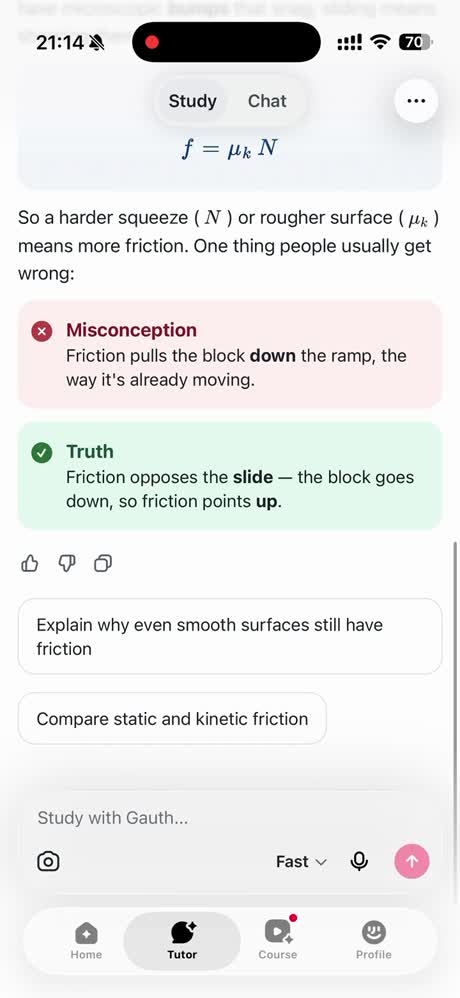
Study Mode explains the friction concept, compares related terms and supports follow up questions. Show a genuine exchange in your own video.

Create a Quiz from chat+

The learner asks for a friction quiz, and a quiz is generated directly within the study conversation.

Create and review Flashcards+

The learner requests flashcards for the topic. A study set appears in the conversation and can be opened for review.

Take the Quiz and view feedback+

The practice quiz presents questions and a checkable answer. Show a quick example of self testing rather than just the tool name.

Continue with another study topic+

The learner continues the Study Mode conversation with trigonometry. Your final video can focus on one consistent learning topic.

Your final video: Include Photo Search as well. Show both Quiz and Flashcards being generated in Study Mode, but use quick edits to fit the 60 to 90 second runtime.

REQUIRED / FILMING RULES

What to do and what to avoid

These apply to both creator guides. Read before filming.

✓ DO
  • Show the real Gauth mobile app following Photo Search → Study Mode. Both Quiz and Flashcards must be generated in the Study Mode chat.
  • Film every app screen over the shoulder. This includes Gauth and any general AI tool.
  • Keep the phone clean, sharp, readable and correctly exposed.
  • Use local-language voiceover and examples that suit your audience.
  • Keep comparisons fair, with real questions and real outputs.
✕ DO NOT
  • Do not use the Gauth website or standalone screen recordings instead of actual phone footage.
  • Do not say or write competing AI product names.
  • Do not show competitor names, logos or app icons clearly. Blur or crop them, but keep the study content legible.
  • No cheating, copying answers, or guaranteed grade improvement claims. Avoid wording that suggests instant homework completion, plagiarism, or promised exam results.
  • Do not use old standalone tutorials or present the new Study Mode workflow as a disconnected list of features. Do not copy the reference shot for shot.
REQUIRED / PUBLISHING

Posting Requirements

Tick each requirement as you prepare, approve and publish your content.

0 / 7completed
01

Prepare the post

02

Get approval

03

After publishing

All videos must follow the filming and content rules above. Content outside the approved direction may need revisions or may not be cleared for publishing.
MOBILE APP FEATURE DEMO

Photo Search

Use the current app interface when filming.
Open video ↗Full feature guide ↗